
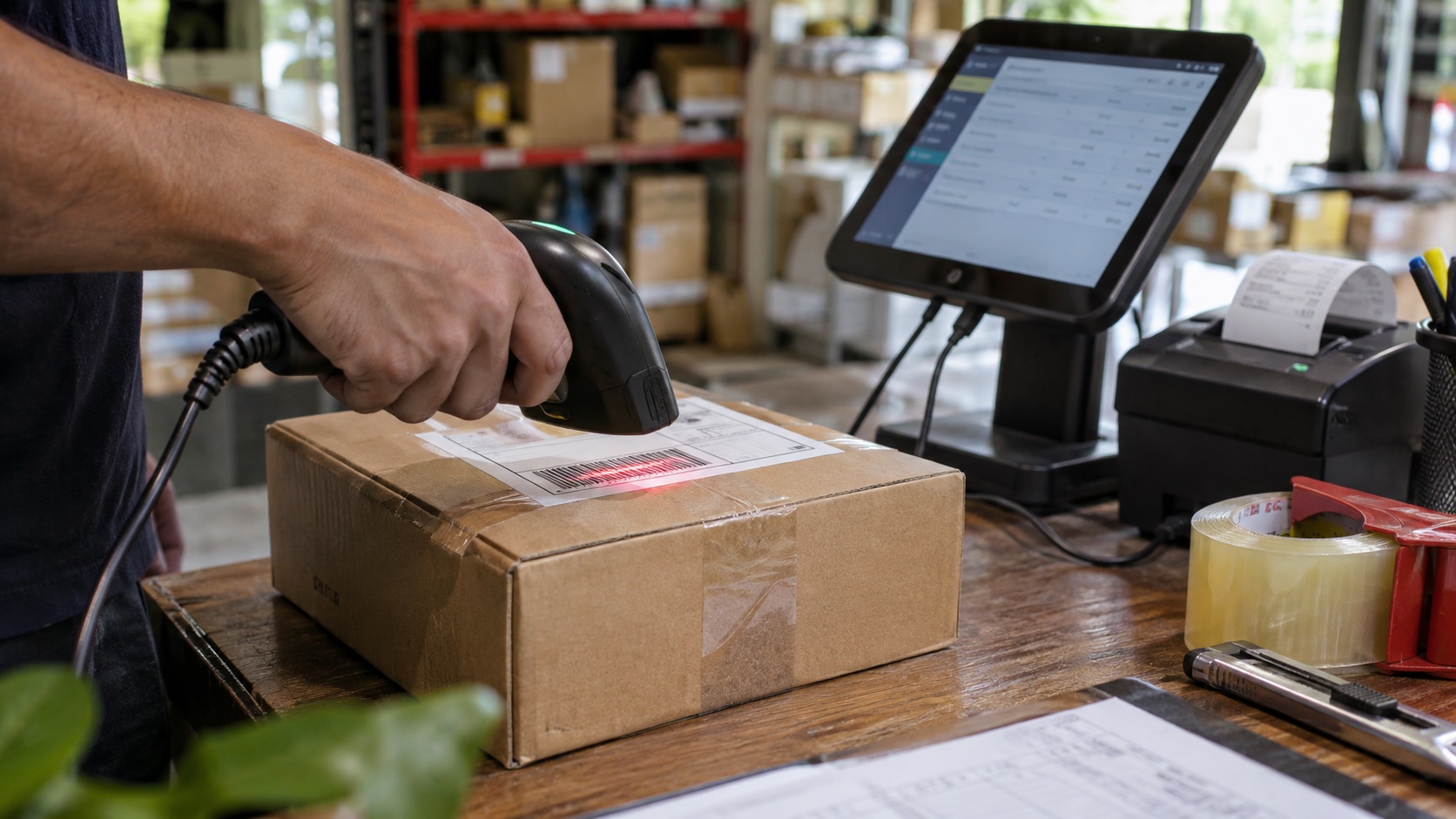
A scanner that types a barcode into a text editor is not yet integrated into a kiosk. The application still needs to distinguish scans from keyboard input, preserve leading zeros, reject duplicates, survive reconnects, and know whether the business action actually completed.
Choose the scanner interface around workflow control and recovery. USB HID is convenient for simple entry, while serial or vendor protocols can provide stronger control over triggers, status, and configuration.
Define the scan transaction
Write down the complete sequence: object presented, trigger activated, code decoded, data received, record validated, business operation committed, and feedback shown.
The scanner’s beep usually means decoding succeeded. It does not prove the application accepted the data or the server completed the transaction. Give those events different feedback where confusion would matter.
Specify supported symbologies, maximum payload length, encoding, leading-zero behavior, check digits, and any expected prefixes or suffixes. Test real labels, including damaged and poorly printed examples.
| Interface | Advantage | Integration cost |
|---|---|---|
| USB HID keyboard | Broad compatibility and simple input | Focus, keyboard layout, framing, and duplicate handling |
| USB serial | Explicit data stream | Driver, permissions, reconnect, and framing |
| UART | Direct embedded connection | Voltage levels, grounding, protocol, and cable protection |
| Vendor SDK or service | Trigger and device control | Version support and supplier dependency |
| Camera-based decoding | No separate scan engine | Lighting, focus, motion, CPU load, and ergonomics |
Make HID input intentional
A keyboard-mode scanner can send data to whichever field has focus. A notification, maintenance dialog, or unexpected activity can redirect the scan.
Use a dedicated input strategy and restore focus predictably. Validate that scans cannot enter passwords, service menus, or hidden fields. Keep ordinary keyboard input behavior separate if the product supports both.
Keyboard layout can transform punctuation. A scanner configured for one locale may send different characters on another Android layout. Test the exact payload alphabet and configuration.
Use a reliable framing convention, such as an approved prefix and terminator, when supported. Timing alone is a weak way to distinguish a fast typist from a scanner.
Parse serial data as a stream
Serial reads do not necessarily arrive one barcode at a time. A code can be split across reads, and several codes can arrive together.
Implement buffering, explicit frame boundaries, length limits, and timeouts. Reject malformed input without letting one bad frame corrupt the next valid scan.
For UART, confirm logic voltage and whether the port is TTL, RS-232, or another electrical interface. A connector label saying “serial” is not enough.
The serial-interface guide covers electrical distinctions that can otherwise damage hardware or create intermittent errors.
Preserve the payload exactly
Keep barcode data as a string unless the application domain explicitly defines a numeric conversion. Leading zeros and long identifiers can be lost when parsed into ordinary numeric types.
Define encoding and normalization. Whitespace trimming, case conversion, and control-character removal can change a valid identifier.
Validate length and symbology-specific rules before acting. Never let scanned data become an unrestricted command, URL launch, SQL fragment, or file path.
Log only what is necessary for diagnosis. Barcodes may contain personal or commercial information, so use redacted identifiers or hashes when full payloads are not needed.
Handle duplicate scans at the right layer
A held trigger or stationary label can produce repeated decodes. The scanner may suppress repeats, but the application still needs a business-level duplicate policy.
A short debounce interval can prevent accidental double entry, yet it may also block legitimate repeated scans of identical items. Define the rule around the workflow.
For a remote transaction, use a stable operation identifier and server deduplication. A network timeout followed by another scan must not silently double the action.
The offline-first guide explains durable queue and acknowledgement behavior when scans continue without connectivity.
Own USB permissions and reconnects
Android USB access depends on device support, application permissions, and the selected API or driver. Test first connection, reboot, reconnect, and application replacement on the production image.
A permission dialog can block an unattended kiosk. Resolve the approved provisioning flow before shipment rather than expecting an operator to dismiss it.
Identify devices by a controlled combination of interface, vendor/product identity, serial number where reliable, and approved configuration. Avoid assuming the scanner always receives the same device path.
The USB peripheral guide covers shared power and enumeration issues when printers, cameras, and scanners operate together.
Test optics and ergonomics
A good electrical integration can still fail at the counter. Check scan distance, angle, motion, ambient light, glossy packaging, curved labels, and display-presented codes.
For fixed scanners, test the actual mounting window and recess. Extra glass, tint, reflections, or a narrow opening can reduce performance.
Observe real users. The product should guide placement without requiring a technician’s practiced angle. Feedback should be visible and audible in the intended environment.
Measure successful transaction time, not only decode speed. A fast scan followed by a slow or ambiguous application response encourages users to scan again.
| Test case | Expected behavior | Evidence |
|---|---|---|
| Leading zeros and long code | Exact payload preserved | Byte-level comparison |
| Rapid repeated scans | Defined duplicate policy | Accepted and rejected counts |
| USB disconnect mid-frame | Partial data discarded safely | Parser and reconnect log |
| App restart | Scanner returns without manual setup | Recovery time |
| Network outage | Allowed work queues visibly | Durable operation record |
| Damaged or glossy label | Predictable success or clear failure | Trial count and conditions |
| Wrong symbology | Rejected without side effect | Validation result |
Freeze scanner configuration
Store the approved firmware and configuration with the product release. Trigger mode, symbologies, keyboard locale, prefixes, suffixes, and beeper behavior can all change application results.
A factory configuration barcode may be useful, but the station should verify the resulting settings. Scanning a setup sheet is not proof that every setting was accepted.
Control replacement units. A visually identical scanner with different firmware or defaults can create a new field behavior.
Include configuration verification in the factory fixture plan when the scanner is part of the shipped assembly.
Frequently asked questions
Is USB HID the best choice for every kiosk?
It is simple for basic entry, but explicit protocols may be better when the application needs trigger control, status, configuration, or strong input isolation.
Should the application remove leading zeros?
Only if the identifier specification explicitly requires it. In many barcode systems, those zeros are part of the identity.
Does a scanner beep mean the transaction succeeded?
Usually it means the code was decoded. Application acceptance and remote confirmation need their own state and feedback.
Acceptance record
Release a test set of representative codes, approved scanner configuration, parser behavior, reconnect results, and transaction timing. That record lets replacement scanners be qualified without rediscovering the workflow assumptions.